Tip of the day: Expire a cookie, don’t remove it

I recently found a bug in my code that I couldn’t fathom initially until I walked through the HTTP headers in firebug. In short, you cannot simply remove a cookie by calling Remove(cookieName) on the HttpCookieCollection. That will have no effect. You have to expire the cookie in order for it to be removed.

In other words, you need code like this:

HttpCookie cookie = new HttpCookie("MyCookie");
cookie.Expires = DateTime.UtcNow.AddYears(-1);
Response.Cookies.Add(cookie);

When you create a cookie, the response from the server will contain an HTTP Header called Set-Cookie that contains the value of the cookie.

For example, if we create a cookie like this:

HttpCookie cookie = new HttpCookie("MyCookie");
cookie.Value = "The Value of the cookie";
Response.Cookies.Add(cookie);

Then the Response will contain this:

Set-Cookie    MyCookie=The Value of the cookie; path=/

Each subsequent request to the server will contain the cookie, like this:

Cookie        MyCookie=The Value of the cookie

The responses from the server do not contain the cookie unless the server is updating the value of the cookie.

When the cookie is to be removed forcefully, the server must update the cookie with a new expiry, like this:

HttpCookie cookie = new HttpCookie("MyCookie");
cookie.Expires = DateTime.UtcNow.AddYears(-1);
Response.Cookies.Add(cookie);

The response will then have this header:

Set-Cookie    MyCookie=; expires=Mon, 20-Sep-2010 21:32:53 GMT; path=/

And in subsequent requests the cookie won’t be present any more as the browser will have removed it.

Installing a web site on a new server

Here are some blog posts that have been useful to me lately when I got caught out installing a website on a new server (I will eventually get that automated build and deploy process actually performing the deploy step successfully!!)

The configuration section ‘system.web.extensions’ cannot be read because it is missing a section declaration:

While installing a website on a new Windows Server I came across this error. In short, it was because the App Pool was set up as a .NET 2.0 application rather than a 4.0. The blog post explains what was going on and how to fix it.

[Resolved] Could not load file or assembly ‘XXXXX’ or one of its dependencies. An attempt was made to load a program with an incorrect format:

Although this didn’t help me in the end, it does suggest a solution. In my case, because of a third-party dependency that requires an x86 build, it couldn’t be used. In time that dependency will be removed, in the meantime the following was more helpful to me…

Could not load file or assembly ‘PresentationCore’ or one of its dependencies. An attempt was made to load a program with an incorrect format. : A solution:

This post did give me the pointer I needed to the setting that had to be changed to get the web site working.

Browser wars

Every so often I update my chart of the technologies people use to view my blog. The last time was back in October last year, and the chart as it looks now is very interesting. The three major browsers (Internet Explorer, Fire Fox and Chrome) are now converging at around 30% share each. Other browsers such as Opera and Safari don’t get much of a look in. However, it does look like I’ll shortly have to start noting down one or two mobile browsers distinctly. Currently mobile browsers are all lumped into the “Other” category.

Meanwhile, on the operating system front Windows XP continues to slowly ebb away. However, the fact that 30% of the visits to my blog are from a Windows XP machine is still painful to see. Vista users are also dying away and are down to about 6% now. At its current rate of decline there will be more Mac users visiting my blog by the turn of the year.

Google Analytics also has a facility to record page load times, however it is currently only reporting from Internet Explorer and Chrome at the moment. That coupled with only 3 months of data so far doesn’t make for very interesting trend watching. However, in a future update I’m sure I’ll add page load times.

Tip of the day: Getting Visual Studio with TFS to work offline

Earlier to day our TFS server went down. Visual Studio likes to have a constant connection open to it, but obviously that wasn’t going to happen. Luckily, it is possible to work on a solution with no connection to TFS.

If you were just starting some work…

If Visual Studio was open when TFS went off-line then it won’t allow you to check out any files. If all your files are checked in already, then you can just shut down Visual Studio and then start again. When the solution opens it detects that TFS is gone and offers to open the project in Offline mode:

Go Offline
TFS Go Offline

When TFS is available again you can simply reconnect to the server by selecting the Team?Connect to Team Foundation Server… menu. Once you are connected, you can right-click the solution and select “Go Online“.

You’ll get a dialog that asks to to confirm the files that you’ve changed in the meantime:

Go Online
TFS Go Online

It will then take a few moments for TFS to catch up (I have quite a large solution, so it took about a minute for me) then the files appeared in the Pending Changes window ready to be checked in as normal.

If you were in the middle of something

If you already had files checked out when TFS went offline then this post about converting to offline may be more useful to you.

There is also a Visual Studio extension, if you prefer not having to restart Visual Studio called Go Offline. Once installed, just to to File?Source Control?Go Offline. This may be a more useful solution if you are constantly going in and out of connection with TFS (a mobile broadband connection on a train for example).

Friendly error messages with Microsoft Report Viewer Control

For a project I’m working on I’ve got to display data that’s coming from SSRS (SQL Server Reporting Services) on a web page for our users. One of the feedback items from the first round of user testing was that the error messages from the control were not helpful or friendly.

For example, if a user types in a date in an incorrect format the Report Viewer Control would return an error message to the user like this:

The value provided for the report parameter 'pToDate' is not valid for its type. (rsReportParameterTypeMismatch)

The user doesn’t know that “pToDate” is. The nearest possibly alternative on the page reads “To Date” so they could possibly take a good guess, but why risk support calls over something like that? And the “(rsReportParameterTypeMismatch)” is likely to mean even less to a user. Why should they even have to see things like that?

So I set about trying to change that.

In fact the control gives you no way to alter the error messages that it shows. There is a ReportError event that you can subscribe to and indicate you’ve handled the error, but no where to provide a better error message.

With that in mind I thought that what I’d do is create a Label on the page to hold the error message and populate it if an error occurred.  However, I found that while I could get the message to display initially, I could not get it to go away once the user had corrected the error.

What I had was this:

ASPX:

<asp:Label runat="server" ID="ReportErrorMessage" Visible="false"
           CssClass="report-error-message"></asp:Label>
<rsweb:reportviewer runat="server" ID="TheReport"  Font-Names="Verdana"
                    Width="100%" Height="100%" Font-Size="8pt"
                    InteractiveDeviceInfos="(Collection)" ProcessingMode="Remote"
                    InteractivityPostBackMode="AlwaysSynchronous"
                    WaitMessageFont-Names="Verdana" WaitMessageFont-Size="14pt"
                    OnReportError="TheReport_ReportError"
                    OnReportRefresh="TheReport_ReportRefresh">
    <serverreport reportpath="/Path/To/The/Report"
                  reportserverurl="http://the-report-server.com/ReportServer" />
    </rsweb:reportviewer>

C#

protected void TheReport_ReportError(object sender, ReportErrorEventArgs e)
{
  if (e.Exception.Message.Contains("rsReportParameterTypeMismatch"))
    ReportErrorMessage.Text = BuildBadParameterMessage(e);
  else
    ReportErrorMessage.Text = BuildUnknownErrorMessage(e);

  ReportErrorMessage.Visible = true;
  e.Handled = true;
}

protected void TheReport_ReportRefresh(object sender, CancelEventArgs e)
{
  ReportErrorMessage.Visible = false;
  ReportErrorMessage.Text = string.Empty;
}

Somehow or another the initial message was being set, however the changes in TheReport_ReportRefresh were not being applied despite me verifying the code was being run.

I eventually realised that the report viewer control was not performing a full postback, but just a partial postback and that I needed to put the Label control inside an update panel. Like this:

<asp:UpdatePanel runat="server">
    <ContentTemplate>
        <asp:Label runat="server" ID="ReportErrorMessage" Visible="false"
                   CssClass="report-error-message"></asp:Label>
    </ContentTemplate>
</asp:UpdatePanel>

Once I did that the message appeared and disappears correctly.

The slow handclap

… or how not to motivate your staff

In a previous job we had a team meeting each morning at 9:15. The purpose was to go around the team and in almost scrum like fashion tell everyone what you did, what you’re planning to do and anything holding things up. Occasionally it would also allow people to tell others about some useful new technology or way of doing things that may be of benefit to others.

This was great, however one team member occasionally turned up late. Sometimes due to traffic, but often due to a long running medical complaint that had come out of remission. As a result he earned the displeasure of the development team’s manager.

One morning this manager faced with this individual being late once again instructed his team that any time someone arrives into the meeting late they were to receive a slow handclap. A gesture that indicates dissatisfaction or impatience [1].

A few minutes later the late comer arrived and the team started its slow handclap, egged on by a grinning manager. I joined in. However, something was intensely uncomfortable about it.

The next time the late comer arrived mid-meeting the team again started its slow handclap. This time I didn’t join in. And it clicked what had made me so uncomfortable the first time around. A slow handclap is a gesture designed to publically humiliate the person it is aimed against, which was why I felt so uncomfortable about it.

While it might be perfectly acceptable and understandable for a group of people to spontaneously employ a slow handclap against a politician making a speech, say, the Women’s Institute against the then Prime Minister [2], it is most definitely not acceptable for a manager to employ his staff into joining him in a bit of group bullying.

For a group who have less power it can be effective to help redress the balance to some degree. The WI against the PM, for example. However, for it to be employed by someone who already has power against someone who does not, a manager against a junior team member, it is inexcusable.

LINQ query performance

A while ago I was reviewing some code and I came across some code that looked like this

if (corpus.Where(a => a.SomeProperty == someValue).Count() > 0)
{
    // Do Stuff
}

And it got me thinking that it may not be the best way to do this. What is really being asked here is: “Are there any items in the enumerable?” The count is not actually important in this situation. I considered that it would probably be more efficient to write:

if (corpus.Where(a => a.SomeProperty == someValue).Any())
{
    // Do stuff
}

Then I read somewhere (unfortunately, I didn’t note the URL) that for certain situations the .Any() extension method on IEnumerable<T> can be inefficient in certain scenarios. For instance, if concrete type is actually a List<T> which maintains its own Count. In that instance the cost of setting up the Enumerator and calling MoveNext() to determine the existence of at least one element would be more expensive an operation than calling Count on the List<T>.

I was curious about that so I set about working out the relative performance characteristics of a number of the LINQ extension methods. I should note that these were all on LINQ to Objects out of the box so don’t measure how these methods would perform relatively for things like, say, LINQ to SQL.

I tested various scenarios, some where the IEnumerable<T> is a lightweight generator of elements, in this case an Enumerable.Range(…), in other cases I used a List<T> either by a concrete reference or by an reference to the IEnumerable<T> interface.

All timings in this post relate to my desktop machine which is running Windows 7 64bit with 8Gb RAM and an AMD Phenom II X4 955 running at 1.6GHz (which for some unknown reason it won’t run at the full 3.2GHz)

Counting elements

In the first set of tests I counted the number of elements. For the cases where I called the Count property directly on the List<T> and used the Count() extension method on IEnumerable<T> where the concrete type was the List<T> the result was returned in O(1). The LINQ method was 24 times slower.

Where the IEnumerable<T> did not also implement the ICollection<T> interface (as in the case where the values were being generated by Enumerable.Range(…) method) the Count() extension method took O(n) time to return the answer.

The graph above shows the number of Ticks (vertical axis) taken to complete the counting task with n (horizontal axis) elements. A tick is roughly 1/1600th of a millisecond. So for 2000000 elements it took 72.5ms to count them.

Compare that for instances where the Count property was called directly (0.00413 Ticks or 0.00258µs [millionths of a second]) or where the Count() method was called on something that could be cast to an ICollection or ICollection<T> (0.0989 Ticks or 0.0618µs)

So far it looks good for cases where the underlying type implements the ICollection<T> or ICollection interface. However remember as soon as you start filtering the data (e.g. with a Where() method call) then you are returning an IEnumerable<T> which then operates in O(n) time. Also remember that the Where() clause will add some overhead as it has to process the filter as well.

Any elements

It should be no surprise that using our test set of a List<T> and an Enumerable.Range(…) the Any() method runs in O(1) time. Both took similar amounts of time, the former taking 0.278 Ticks (0.174µs) per call, and the latter taking 0.296 Ticks (0.185µs) per call. I suspect that time on the latter is more due to the the small amount of additional time taken to generate additional elements as the enumerator progresses.

However, if you have a reference to something that already implements ICollection<T> which defines a Count property, such as a List<T>, you may find it is faster to perform (corpus.Count>0). I found that for the List<T> I’d created for the test runs it was only marginally slower than the raw call to Count taking 0.00607 ticks (0.00379µs) per call.

Any elements with filter

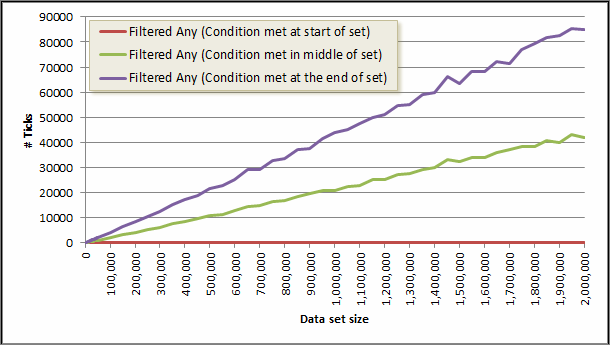
If you have a filter (a Where clause) then Any may take longer that O(1). It will take as long as it takes to find anything that matches the filter or O(n) if nothing matches the filter.

I ran three tests, one where the filtered condition was met on the first element, one where the condition was met in the middle of the set and one where the condition was not met until the last element.

Summary

If you have a concrete type the performance is better when using the Count property both for cases when you need to know the number of elements in the corpus or when you need to know if there any any elements at all.

If you simply need to know if there are any elements at all in the corpus then the use of Any() works out better than using the LINQ extension method Count() as Count() must traverse the entire corpus (unless it derives from ICollection<T> whereas Any() will short circuit at the first available opportunity.

Running Queries on Excel Spreadsheets using SQL Server 2008

I’m more a database person than a spreadsheet person. I’m more used to using SQL to bend data to my will than all the fancy gubbins that you’ll find in Excel. With some chunky (for a spreadsheet) ad hoc data in hand I set about connecting it up to SQL Server so I could run a few choice SELECT statements on the data.

The details in this post work with 64bit editions of Excel 2010 and SQL Server 2008 R2

The basic ad hoc connection looks something like this:

SELECT *
FROM OPENDATASOURCE( 'Microsoft.ACE.OLEDB.12.0', 'Data Source="<full file path to excel file>"; Extended properties=Excel 12.0')...[<data sheet name>$]

However, if you try that in SQL Server Management Studio on a raw SQL Server installation you’ll get this error message:

Msg 15281, Level 16, State 1, Line 7
SQL Server blocked access to STATEMENT 'OpenRowset/OpenDatasource' of component 'Ad Hoc Distributed Queries' because this component is turned off as part of the security configuration for this server. A system administrator can enable the use of 'Ad Hoc Distributed Queries' by using sp_configure. For more information about enabling 'Ad Hoc Distributed Queries', see "Surface Area Configuration" in SQL Server Books Online.

Enabling Ad Hoc Remote Queries

I’ve linked to the Books On-Line entry in the above, but it is only part of the story. Once you’ve followed its instructions on opening the View Facets dialog, you have to hunt around a little to find where you turn on and off the ad hoc remote queries. To save you the time, they’re in the “Server Configuration” facet.

The alternative, also mentioned, is to issue a SQL Command. This command:

sp_configure 'Ad Hoc Distributed Queries', 1;

However, that still won’t work directly. You’ll get the following error message:

Msg 15123, Level 16, State 1, Procedure sp_configure, Line 51

The configuration option 'Ad Hoc Distributed Queries' does not exist, or it may be an advanced option.

The full SQL you need is:

sp_configure 'show advanced options', 1;
RECONFIGURE
GO
sp_configure 'Ad Hoc Distributed Queries', 1;
RECONFIGURE
GO

And you’ll get output that looks like this:

Configuration option 'show advanced options' changed from 0 to 1. Run the RECONFIGURE statement to install.

Configuration option 'Ad Hoc Distributed Queries' changed from 0 to 1. Run the RECONFIGURE statement to install.

Now, we can try running the SELECT statement again, but this time the following error appears:

Msg 7302, Level 16, State 1, Line 2

Cannot create an instance of OLE DB provider "Microsoft.ACE.OLEDB.12.0" for linked server "(null)".

ODBC Configuration

This is because the ODBC driver is not configured correctly, go to the Control Panel –> System and Security –> Administrative Tools –> Data Sources (ODBC), alternatively you can just type “ODBC” in the Windows start bar.

Either way, you get to this dialog:

And as you can see the ODBC Driver needed for reading Excel files is not installed. A pretty big configuration failure. But it is easy enough to get the correct drivers. You can download them from Microsoft:

However, there is a problem if you have 32bit Office installed and 64bit SQL Server. The 32bit installer for the ODBC Drivers won’t work with 64bit SQL Server, and the 64bit drivers won’t install if it finds an existing 32bit installation of Office on the machine. For my desktop machine that was a problem, but luckily my laptop is running both 64bit versions of Office and SQL Server.

Finally

I eventually found this code snippet that works:

SELECT *
FROM OPENROWSET('MSDASQL',
'DRIVER=Microsoft Excel Driver (*.xls, *.xlsx, *.xlsm, *.xlsb);
DBQ=c:devPerformance-results.xlsx',
'SELECT * FROM [results$]')

The only issue that I have with this is that it uses MSDASQL which is surrounded in uncertainty. In one blog post it was said to be deprecated and 64bit versions won’t be available. Yet, there is a 64-bit version available for download. But for the ad hoc work I’m doing at the moment, it works.

Entity Framework Tracing Provider: Schema specified is not valid

I’ve been trying to get the Tracing and Caching Provider Wrappers for Entity Framework working and I ran in to a small problem. It turned out it was actually a silly RTFM issue, but in case you miss out a step here’s what happens when it is missed.

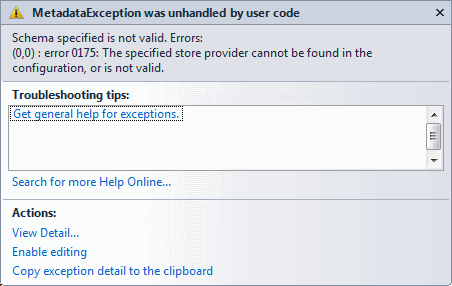
In the CreateWrappedMetadataWorkspace method in the EntityConnectionWrapperUtils class a MetadataException is thrown that states:

Schema specified is not valid. Errors:
(0,0) : error 0175: The specified store provider cannot be found in the configuration, or is not valid

This happens on the line that reads:

StoreItemCollection sic = new StoreItemCollection(ssdl.Select(c => c.CreateReader()));

[Note: Your Exception Assistant may show it on a different line but the stack trace in the exception itself will report correctly.]

What I had missed was some config changes I’d somehow missed out when I was setting up the provider. The missing config is:

<system.data>
  <DbProviderFactories>
    <add name="EF Caching Data Provider"
         invariant="EFCachingProvider"
         description="Caching Provider Wrapper"
         type="EFCachingProvider.EFCachingProviderFactory, EFCachingProvider, Version=1.0.0.0, Culture=neutral, PublicKeyToken=def642f226e0e59b" />
    <add name="EF Tracing Data Provider"
         invariant="EFTracingProvider"
         description="Tracing Provider Wrapper"
         type="EFTracingProvider.EFTracingProviderFactory, EFTracingProvider, Version=1.0.0.0, Culture=neutral, PublicKeyToken=def642f226e0e59b" />
    <add name="EF Generic Provider Wrapper"
         invariant="EFProviderWrapper"
         description="Generic Provider Wrapper"
         type="EFProviderWrapperToolkit.EFProviderWrapperFactory, EFProviderWrapperToolkit, Version=1.0.0.0, Culture=neutral, PublicKeyToken=def642f226e0e59b" />
  </DbProviderFactories>
</system.data>